Windows 11 requirements: how to check your PC and upgrade from Windows 10
Quick answer: Windows 11 needs a supported 64-bit processor (1 GHz, 2 or more cores, on Microsoft's approved list), 4 GB of RAM, 64 GB of storage, UEFI with Secure Boot, TPM 2.0, a DirectX 12 graphics card and a 720p screen. The quickest check is Settings > Update & Security > Windows Update on Windows 10: if Windows 11 is offered, your PC qualifies and the upgrade is free.
Most "this PC can't run Windows 11" messages come down to three things: a processor that is too old, TPM 2.0 switched off, or Secure Boot switched off. The last two are often just settings. This guide shows how to check every requirement yourself in a few minutes, fix the common blockers, and upgrade from Windows 10 without losing your files.
Windows 11 minimum system requirements
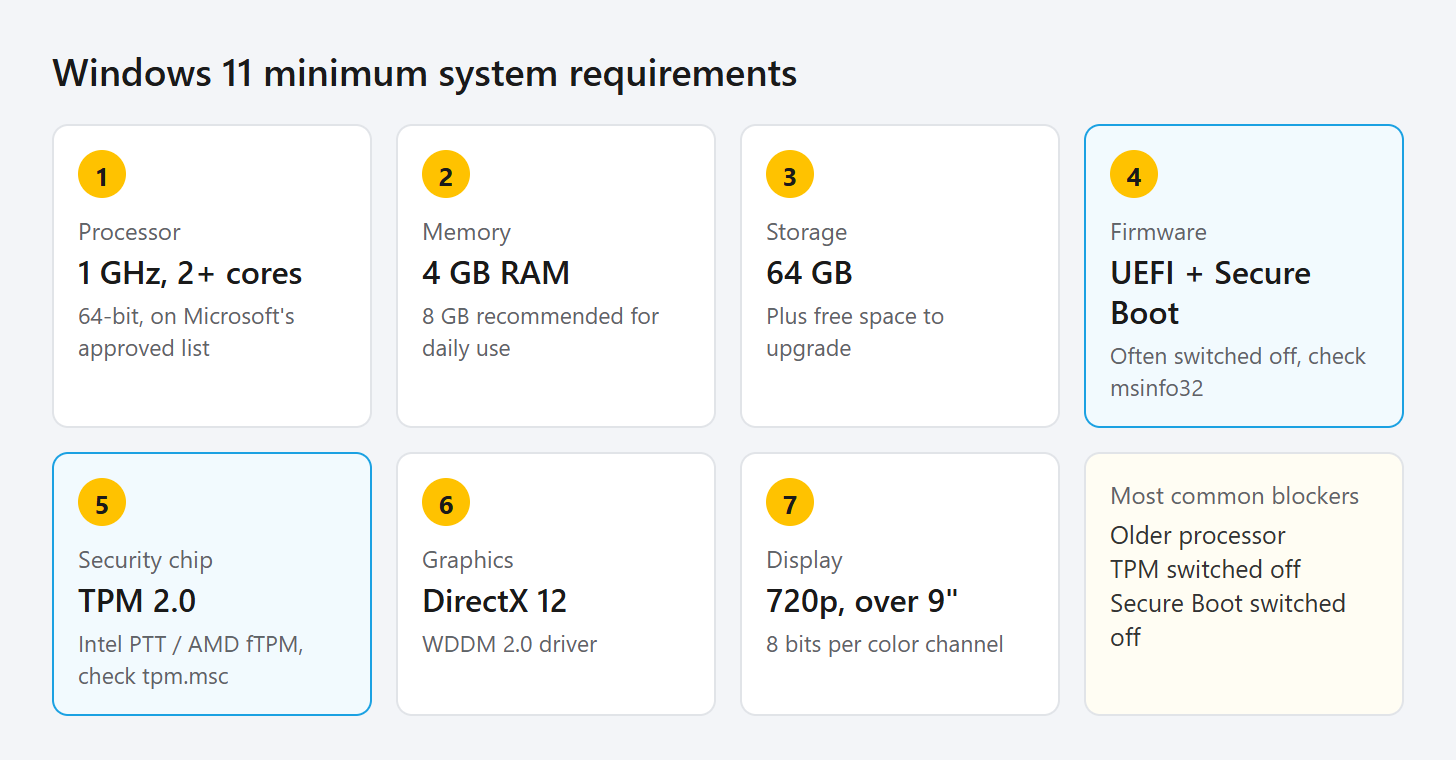
| Component | Minimum | How to check |
|---|---|---|
| Processor | 1 GHz or faster, 2 or more cores, on Microsoft's approved CPU list | Settings > System > About |
| Memory (RAM) | 4 GB | Settings > System > About |
| Storage | 64 GB or larger | File Explorer > This PC |
| System firmware | UEFI, Secure Boot capable | msinfo32 |
| TPM | Trusted Platform Module version 2.0 | tpm.msc |
| Graphics | DirectX 12 or later with a WDDM 2.0 driver | dxdiag |
| Display | 720p, larger than 9 inches diagonally, 8 bits per color channel | Settings > System > Display |
Windows 11 Home also needs an internet connection and a Microsoft account to finish setting up a new PC, and the same applies to Windows 11 Pro for personal use.
The fastest check: let Windows tell you
- On Windows 10, open Settings > Update & Security > Windows Update and select Check for updates. If you see an offer to upgrade to Windows 11, your PC qualifies.
- No offer? Install Microsoft's free PC Health Check app and select Check now under the Windows 11 section. It lists exactly which requirement fails.
If the only failures mention TPM 2.0 or Secure Boot, don't give up yet. Many PCs made since about 2016 have both features, but they are switched off in the firmware settings.
Check TPM 2.0 and Secure Boot yourself
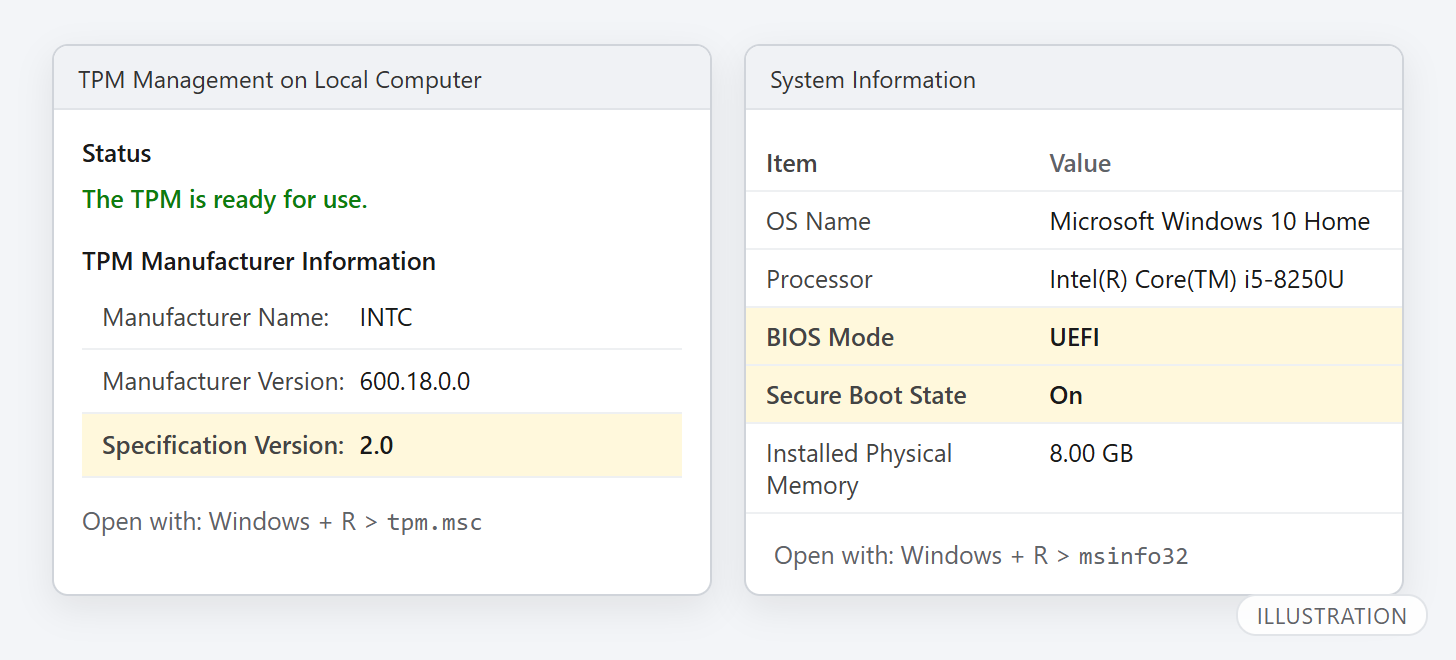
TPM 2.0
- Press Windows + R, type
tpm.mscand press Enter. - Under Status, you want "The TPM is ready for use". Under TPM Manufacturer Information, check that Specification Version shows 2.0.
- If the window says "Compatible TPM cannot be found", the TPM is either missing or switched off in the firmware (see below).
UEFI and Secure Boot
- Press Windows + R, type
msinfo32and press Enter. Our older guide shows more about viewing your system information. - In System Summary, find BIOS Mode: it should say UEFI.
- Find Secure Boot State: On is what you want. Off means the PC supports it but it is disabled; Unsupported usually means the PC is running in Legacy BIOS mode.
How to turn on TPM and Secure Boot
Both switches live in your PC's UEFI firmware settings (often still called the BIOS):
- Go to Settings > Update & Security > Recovery and select Restart now under Advanced startup.
- Choose Troubleshoot > Advanced options > UEFI Firmware Settings > Restart.
- Look in the Security, Advanced or Trusted Computing menu. On Intel PCs the TPM is often called Intel PTT; on AMD PCs it is often AMD fTPM. Enable it.
- Find Secure Boot (usually under Boot or Security) and set it to Enabled. Save and exit.
Two warnings before you change anything:
- If your drive is encrypted with BitLocker or Device encryption, changing TPM or Secure Boot settings can trigger the BitLocker recovery screen. Make sure you can see your key first; our guide on finding your BitLocker recovery key shows where it is.
- If BIOS Mode says Legacy, simply switching to UEFI can stop Windows from starting, because the disk must first be converted from MBR to GPT (Microsoft's MBR2GPT tool does this). Back up your files before trying, or ask a technician.
How to upgrade from Windows 10 to Windows 11
Before you start: back up your important files to an external drive or cloud storage, plug laptops into power, and make sure you have at least 9 GB of free disk space for the download.
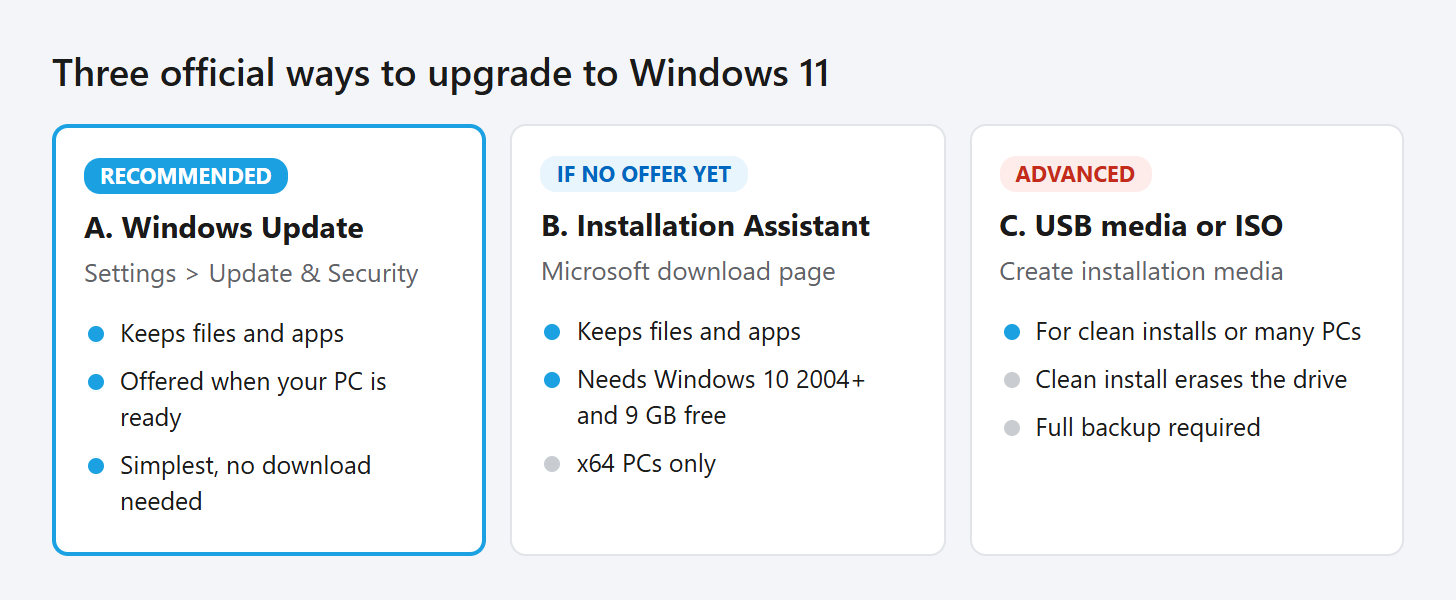
Option A: Windows Update (recommended)
- Open Settings > Update & Security > Windows Update.
- When the Windows 11 upgrade appears, select Download and install.
- Keep using the PC while it downloads. When asked, restart. Your PC will restart several times; don't turn it off.
Option B: Windows 11 Installation Assistant
If your PC qualifies but the offer hasn't appeared yet, download the Windows 11 Installation Assistant from Microsoft's Windows 11 download page. It requires Windows 10 version 2004 or later and 9 GB of free space, and it keeps your files and apps. It works on x64 PCs only; Arm-based PCs should wait for the offer in Windows Update.
Option C: Installation media or ISO
The same page offers Create Windows 11 Installation Media (a bootable USB drive) and an ISO file. These are mainly for clean installs or for installing on several PCs. A clean install erases the drive, so use it only with a full backup.
After the upgrade
- Open Settings > Windows Update and install any remaining updates and drivers.
- Changed your mind? For 10 days you can return to Windows 10 from Settings > System > Recovery > Go back.
- New to Windows 11? The Start menu now sits in the center of the taskbar; you can move it back to the left in Settings > Personalization > Taskbar > Taskbar behaviors.
What if my PC doesn't meet the requirements?
Microsoft does not recommend installing Windows 11 on a PC that doesn't meet the minimum requirements. Its download page warns that such a PC is no longer supported, isn't entitled to receive updates, and that damage caused by incompatibility isn't covered by the manufacturer's warranty. The safer path is to stay on Windows 10 with Extended Security Updates until October 12, 2027, and replace the PC within that window.
Frequently asked questions
Is Windows 11 free?
Yes, for PCs running Windows 10 that meet the requirements. The upgrade is offered free through Windows Update.
Will upgrading delete my files?
No. Upgrading through Windows Update or the Installation Assistant keeps your files, apps and most settings. A clean install from USB or ISO is different and erases the drive. Back up first either way.
How much RAM does Windows 11 need?
The minimum is 4 GB. For comfortable everyday use with a browser and office apps, 8 GB or more makes a noticeable difference.
Why does my PC fail the processor check?
Windows 11 supports processors on Microsoft's approved lists, which generally means Intel 8th generation and AMD Ryzen 2000 series or newer. Older processors can't be fixed with a setting; on those PCs, ESU or a replacement is the realistic option.
Can I go back to Windows 10?
Yes, within 10 days of upgrading, from Settings > System > Recovery > Go back. After that, going back requires a clean install.