BitLocker recovery key: what it is and how to find it
Quick answer: your BitLocker recovery key is a 48-digit number. On a personal PC it is almost always saved in the Microsoft account that set the PC up: from another phone or computer, open aka.ms/myrecoverykey, sign in, and pick the key whose Key ID matches the one on your screen. On a work or school PC, use aka.ms/aadrecoverykey or ask your IT team.
A blue BitLocker recovery screen usually appears without warning, often right after an update, and it will not go away until you type a long recovery key. The good news: on most home PCs the key already exists and takes a minute to find. This guide shows exactly where to look, how to pick the right key, and how to make sure it never catches you out again.
What is a BitLocker recovery key?
BitLocker is the disk encryption built into Windows. On Windows 11 Home it appears as Device encryption; on Pro, Enterprise and Education it is called BitLocker Drive Encryption. Normally the security chip in your PC (the TPM) unlocks the drive silently every time you start Windows, so you never notice it.
The recovery key is the backup way in. It is a 48-digit number, shown as eight groups of six digits, created when encryption was turned on. Each encrypted drive has its own key, and each key has a Key ID so you can tell several keys apart.
Why is my PC suddenly asking for it?
Windows asks for the recovery key when something that BitLocker checks at startup has changed, so it can no longer be sure it is talking to the same, untouched PC. According to Microsoft, common triggers include:
- A BIOS or UEFI firmware update, or changing firmware settings such as the boot order
- Turning off, clearing or resetting the TPM, or a TPM self-test failure
- Replacing the motherboard, or moving the drive to another computer
- Changes to the boot manager or the disk partition table
- Entering a wrong PIN too many times, or too many failed sign-in attempts on managed PCs
- Docking or undocking some laptops, or booting from USB, DVD or the network
In other words, the recovery screen is a safety feature doing its job, not a sign that your files are lost.
Step 1: Write down the Key ID on the recovery screen
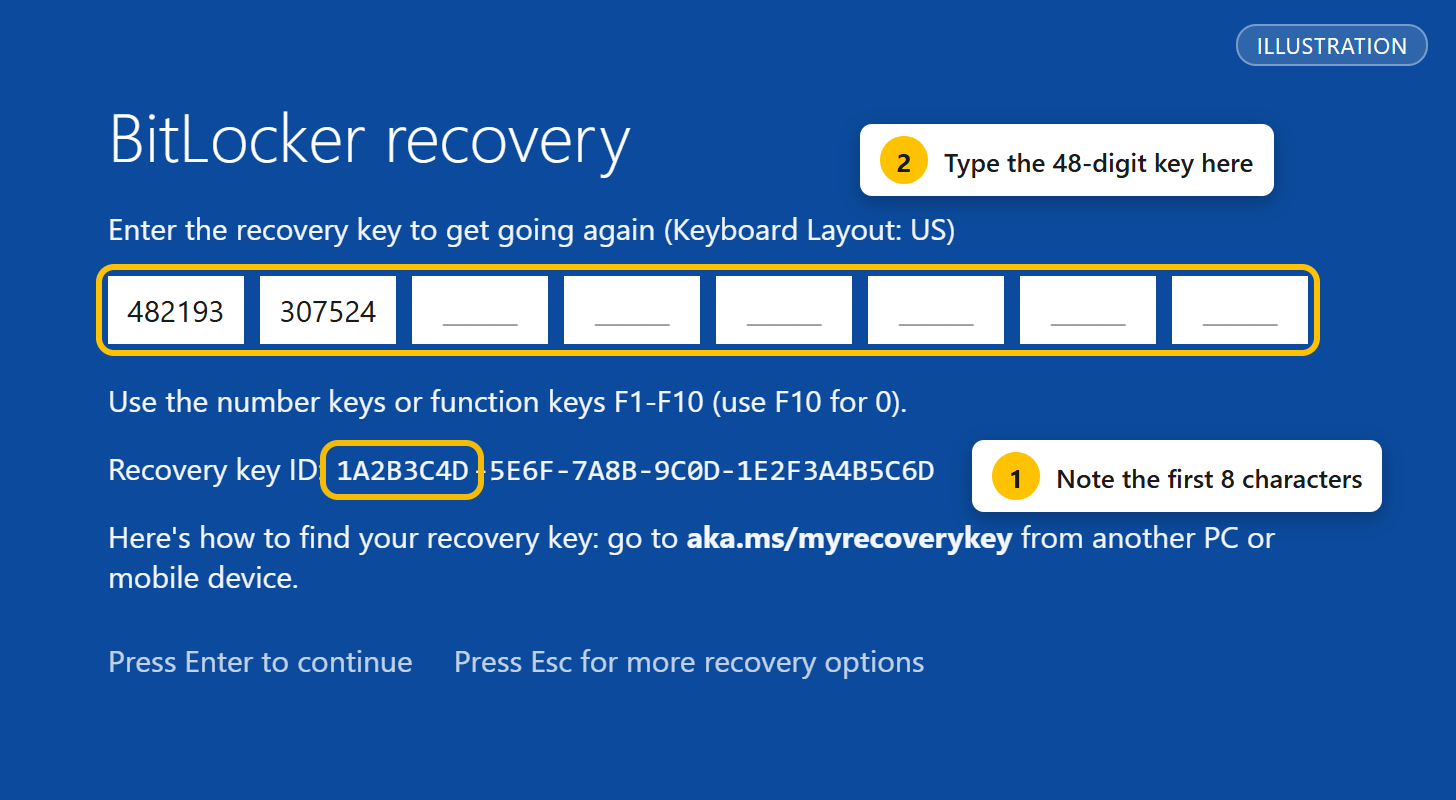
Before you search anywhere, look at the recovery screen and note the first 8 characters of the Recovery key ID. If you have more than one key saved (for example, from an old PC or a USB drive), this is how you choose the right one.
Step 2: Find the key in one of these four places
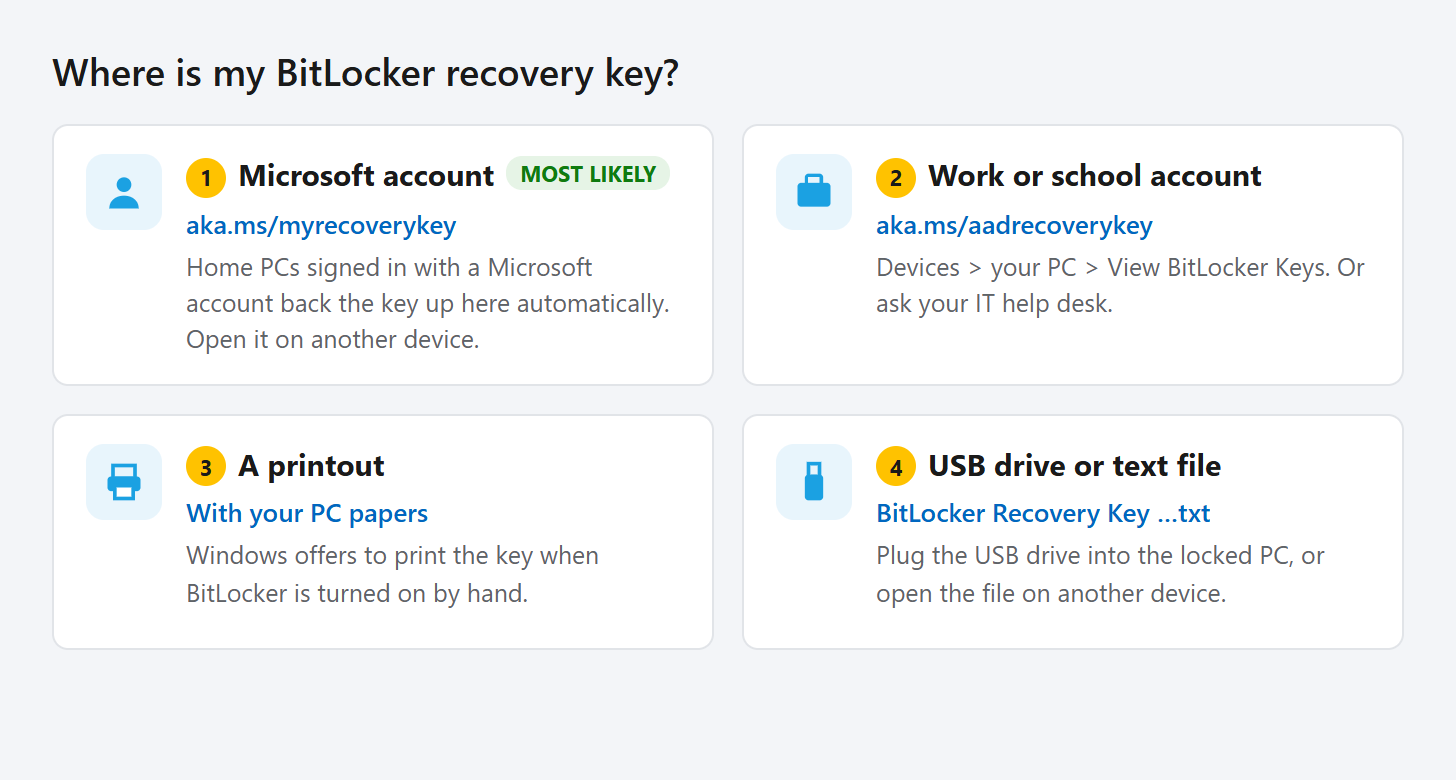
1. Your Microsoft account (most home PCs)
- On another device, such as your phone, open aka.ms/myrecoverykey.
- Sign in with the Microsoft account you use on the locked PC.
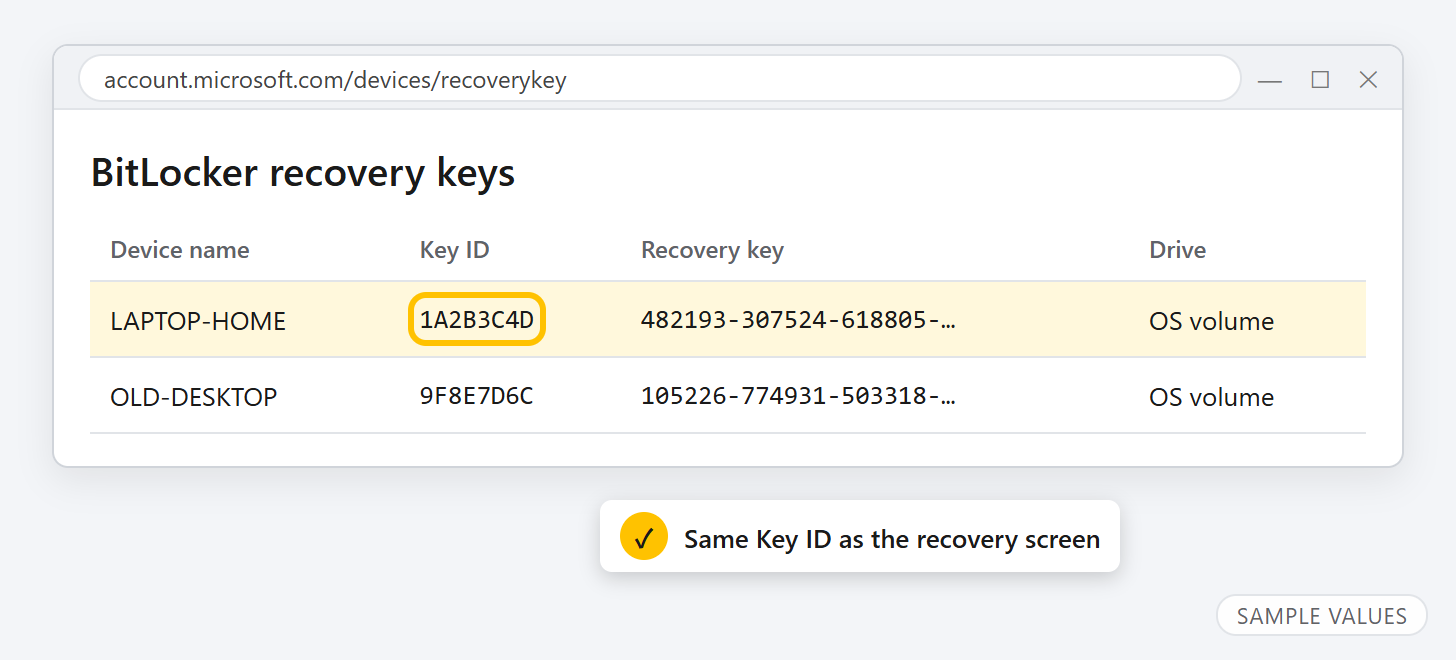
- Find the entry whose Key ID starts with the same 8 characters you wrote down.
- Use the 48-digit Recovery key from that row.
No key there? Try any other Microsoft account that might have been used on this PC, including a family member's account if they set the computer up or turned encryption on.
2. A work or school account
If you sign in to the PC with a work or school email, the key is usually stored by your organization. Go to aka.ms/aadrecoverykey, sign in, select Devices, expand your PC and choose View BitLocker Keys. If you do not see it, your IT help desk can look it up for you.
3. A printout
When BitLocker is turned on manually, Windows offers to print the key. Check wherever you keep important papers for the computer.
4. A USB flash drive or a text file
If you saved the key to a USB drive, plug it into the locked PC and follow the instructions on screen. If it was saved as a text file (named like BitLocker Recovery Key followed by the Key ID), open it on another device and read the number from there.
Step 3: Type the key and restart
Type the 48 digits into the recovery screen; the dashes are added for you. If the number keys do not respond, the screen lets you use the function keys F1 to F10 instead, with F10 for 0. Press Enter and Windows starts normally. If the prompt comes back on every restart, see the prevention section below.
What if I can't find the key anywhere?
This is the hard truth: there is no backdoor. Microsoft states that its support team cannot retrieve, provide or recreate a lost BitLocker recovery key, and the encryption is designed so that nobody can unlock the drive without it. Your remaining options are:
- Undo the change that triggered recovery, if you know what it was. For example, if you just changed a firmware setting such as Secure Boot or the TPM, change it back and restart.
- Ask whoever set up the PC, such as the shop, a relative, or your employer, which account was used.
- Reset the PC from the Windows recovery options. This reinstalls Windows and lets you use the computer again, but it removes all files on the encrypted drive.
Be wary of software that claims to "bypass" or "crack" BitLocker on a modern PC. Without the key, the data cannot be read.
How to stop this from happening again
Once Windows is running, take two minutes to make sure you will never be locked out:
- Confirm the key is in your account. Open aka.ms/myrecoverykey while the PC works and check that its key is listed.
- Keep a second copy. On Windows 11 Pro, Enterprise or Education, open Control Panel > System and Security > BitLocker Drive Encryption > Back up your recovery key, then save it to a file on a USB drive or print it. Keep it away from the PC itself.
- Suspend BitLocker before firmware changes. Before a BIOS/UEFI update or a TPM or Secure Boot change, choose Suspend protection on the same BitLocker page. The drive stays encrypted, and protection resumes automatically after the next restart.
Advanced users can also display the key from an administrator Terminal on Pro, Enterprise and Education editions:
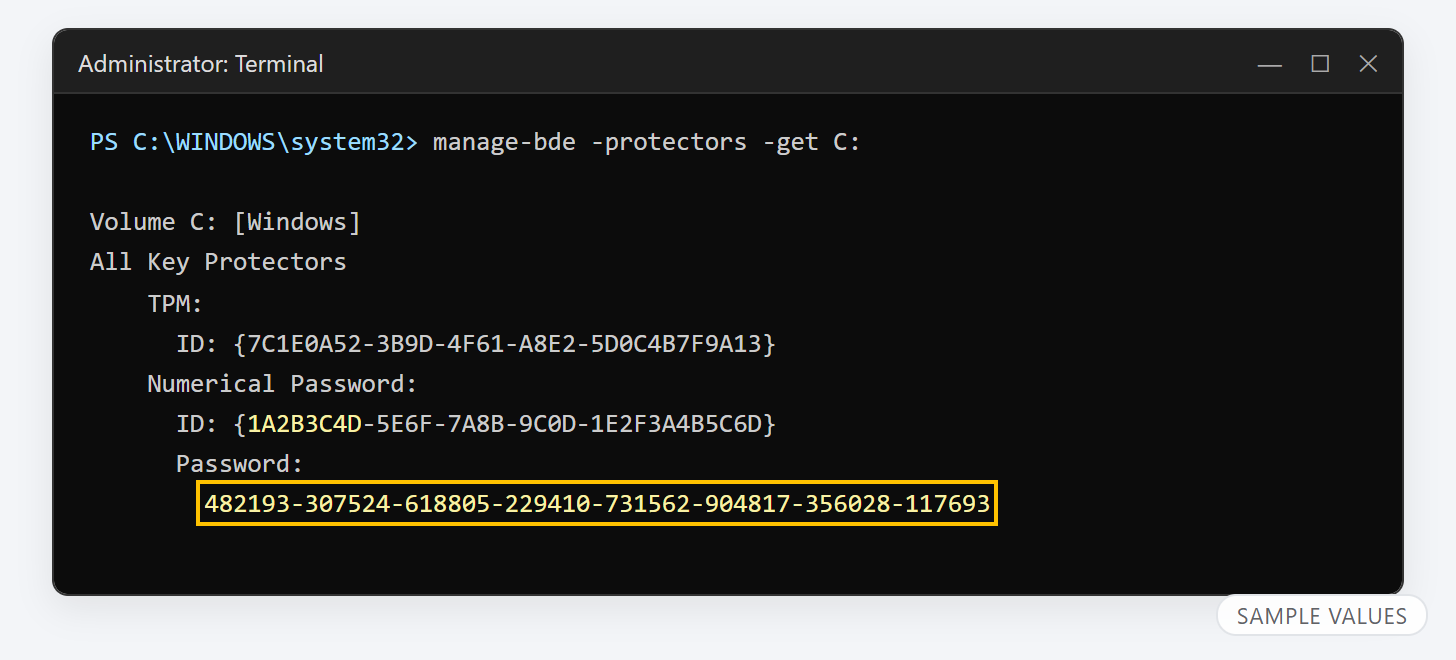
manage-bde -protectors -get C: lists the drive's protectors. The 48-digit number under "Numerical Password" is your recovery key (sample values shown).Frequently asked questions
Is the BitLocker recovery key the same as my Windows password or PIN?
No. Your password or PIN signs you in to Windows. The recovery key is a separate 48-digit number that unlocks the encrypted drive when the normal automatic unlock fails.
Can Microsoft give me my recovery key?
Only through your own account. If the key was backed up to your Microsoft account, you can see it at aka.ms/myrecoverykey after signing in. Microsoft support cannot look up, reset or recreate a lost key.
I never turned on BitLocker. Why does my PC have it?
On many newer PCs, Windows 11 turns on Device encryption automatically when you sign in with a Microsoft account during setup, and backs the key up to that account. That is why the key is usually waiting in your account even if you never saw it.
Will entering the recovery key delete my files?
No. Entering the correct key simply unlocks the drive, and Windows starts with all your files and apps as before.
Can I turn BitLocker off?
Yes, once you are signed in. On Windows 11 Home, go to Settings > Privacy & security > Device encryption; on Pro and higher, use Turn off BitLocker in Control Panel. Keep in mind that encryption protects your files if the laptop is lost or stolen, so backing up the key is usually the better choice.